
The One Meta Pixel Check I Now Do Every Time I Use Google Tag Manager
When I first tried to set up Meta Pixel with Google Tag Manager, I did what every tutorial said. I added the Pixel base code, set the trigger to All Pages, checked GTM Preview, and saw that the tag was firing. It looked correct, but inside Meta, no events were showing up.
That is when I realised something important. Just because a tag fires in GTM, it does not mean Meta is actually getting the data. Since then, I have added one extra check to my process, and I use it every time.
How I use GTM and Meta Pixel right now
Today, I keep my setups simple. On my own site, I use GTM to send page views and form submissions to GA4, and I fire a Meta Pixel PageView on all pages plus a Lead event when someone submits a form. On my older sandbox site, I experimented with more advanced tracking like add_to_cart, view_item, and other ecommerce events. In both cases, the goal is the same. Do not trust the setup until the platforms confirm they are receiving the right events.
The three-step check
Here is the basic check I now do whenever I use GTM with Meta Pixel.
GTM Preview
I open GTM Preview and confirm the right Meta tags fire on the right pages.
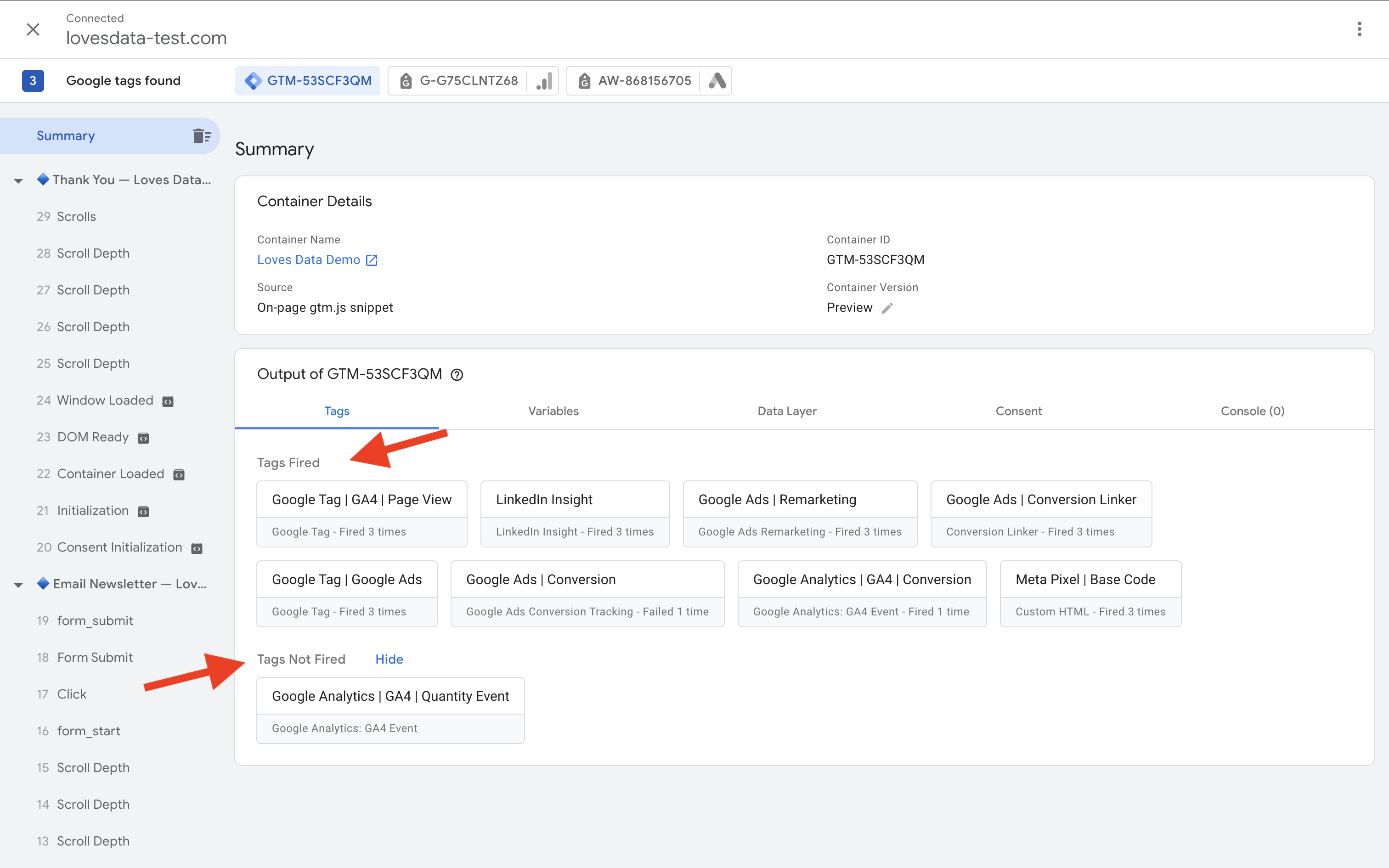
GTM Tag Assistant showing which tags fired on page load
Image credit: Loves Data
Pixel Helper
I open my browser’s Pixel Helper extension and make sure it sees the Pixel and the event name.
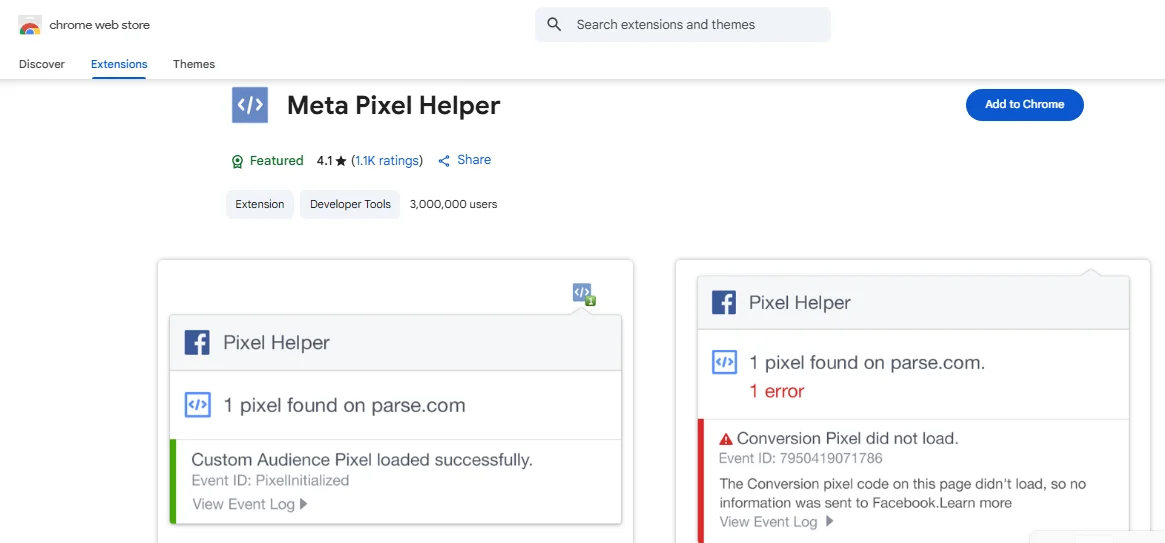
Meta Pixel Helper confirming the Pixel ID and PageView event
Image credit: Conversios
Meta Events Manager
I open Meta Events Manager, go to the Test Events tab, and navigate my site while watching for real-time events there.

Test Events tab in Meta Events Manager showing real-time event data
Image credit: MeasureSchool
Only when all three agree
Only when all three agree do I consider the setup ready. If GTM says the tag fired but Events Manager shows nothing, I know something is wrong. Often it is a wrong Pixel ID, a duplicate hard-coded Pixel somewhere on the site, or an ad blocker getting in the way. Fixing that before campaigns go live saves a lot of confusion later.
Common issues I have run into
- Wrong Pixel ID pasted in the GTM tag
- A duplicate Pixel hard-coded in the site theme
- Ad blocker in the browser blocking the Pixel request
- Forgetting to publish the GTM container after making changes
Why this matters
This is not a full tutorial. It is just the small, practical step I missed at the start. Now, whenever I use GTM for tracking, I do not stop at “tag fired”. I check that the data actually lands where it should, and I only trust the setup when those checks line up.
If you are reviewing my portfolio and want to see how I think about tracking beyond just adding code, this is a small example. You can see more of my work in the Lab section or reach out through the contact form.